As I wrote before, recently I got myself a XTEINK X4, even the blogpost is not that old I got it a little more than a week ago. After using it active several days I can really say the size is the big win and the best argument for this eBook reader. I really keep the habbit to have it in my pocket beside my wallet. It is so tiny it doesn’t hurt and I found myself using it more and more if I need to wait somewhere.
Technical Improvements
In my first article I wrote I went with the Papyrix firmware, well it is still great and lightweight but I had some smaller issues with it. Torn between Papyrix and crosspoint I currently running the crosspoint firmware. But the good thing is, flashing this thing is so easy and done <1minute with no ebooks lost, so it actually doesnt matter so much.
What I found is transfering via Web Transfer is easy but I would prefer to have something like a local library for my ebooks. Until today they all “lived” inside a default folder structure on my homeserver filestorage. I thought for a Sunday Project this might be a good Idea to see whats available to get a “Plex like” library for ebooks. And I settled on the open source Project Komga. It have the big advantage that it not only support ebooks but also Mangas - not that I particulary own a lot of Mangas but who knows, having this options is nice.
Komga
Komga basically is a self hosted reading Library, really best compared to Plex or Jellyfin if you know those from TV Series / Movies. You can create multiple libraries and enrich the ebooks in them with metadata. The XTEINK Reader with the flashed firmware offers a nice Option to directly connect to your Komga and download eBooks from there as well syncing their Reading Progress. This comes specially handy if you own multiple eBook readers compatible with this Sync Mechanic.
Setting Up Komga
Long storry short, I run docker on my homeserver anyway for alot of small services. Adding it via a docker-compose.yml is done in no time.
services:
  komga:
    image: gotson/komga:latest
    container_name: komga
    environment:
      - TZ=Europe/Berlin
    volumes:
      - /tank/ebooks/config:/config
      - /tank/ebooks/data:/data
    ports:
      - "25600:25600"
    restart: unless-stopped
A quick docker compose up -d and we’re good to go. On my homeserver it is found at http://homeserver:25600 afterwards.
Create your admin account and add your first Library. Then on your homeserver place your ebooks inside the library folder and Komga start indexing them.
Connecting Komga to XTEINK on Crosspoint Firmware
This is again very straight forward, connect your XTEINK reader to the wifi and open the webinterface Settings.
There you find KOReader Sync and OPDS Browser both you can fill in like this:
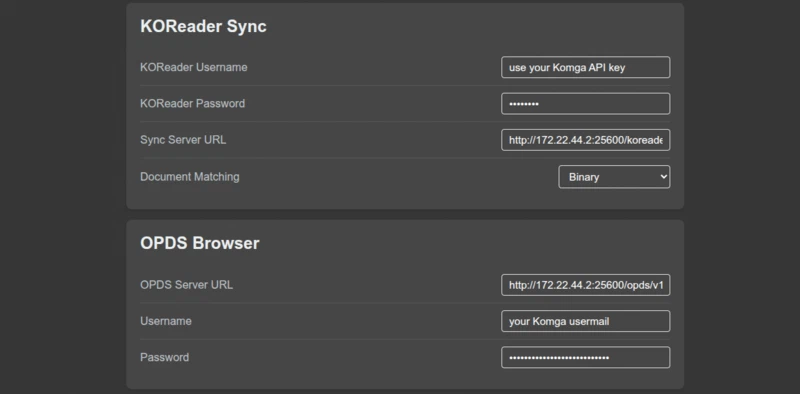
XTEINK on CrossPoint works with both Komga OPDS browsing and KOReader sync using separate endpoints and separate credentials. KOReader sync uses the Komga /koreader endpoint with an API key (you can generate this one in the Komga Webinterface in your User Settings), while OPDS browsing uses the Komga /opds/v1.2/catalog endpoint with the normal Komga account login.
One thing to note for the KOReader sync, use your API Key as username and as password you can put in anything as a placeholder. I put in 00000 which is perfectly fine. One thing noted here for Security, since you mostlikely in this simple Setup not using HTTPS encrytion I would not suggest to open this API via port forwarding. Port Forwarding on your Network is in general a bad Idea, better go with a dial-in VPN.
Notes
I tend to store myself notes in my Knlowledge Base for future Setups in short note form, I just paste it here it might help:
# Komga on XTEINK CrossPoint

**Environment:**
- Komga server: http://172.22.44.2:25600
- Reader: XTEINK with CrossPoint firmware

**KOReader Sync:**
- URL: http://172.22.44.2:25600/koreader
- Username: Komga API key
- Password: 00000000
- Document matching: binary

**OPDS:**
- URL: http://172.22.44.2:25600/opds/v1.2/catalog
- Username: Komga account email
- Password: Komga account password

**Status:**
- KOReader sync: read a book, press options key > Sync
- OPDS browsing: works from main screen

**Notes:**
- Keep KOReader sync and OPDS credentials separate.
- Use the API key only for /koreader.
- Use normal Komga login only for /opds/v1.2/catalog.
Happy reading.
Comments
Nothing is loaded from external services until you click.
With a Fediverse or Mastodon account you can reply to this post. Replies from any compatible server are shown below once loaded.
Mastodon replies
Web mentions
Leave a comment
Reply to this post on Mastodon and your reply will show up here.